Editing Elements
This page explains how to add effects to elements, move them, and more.
Prerequisite Knowledge
This page uses the term Drawing Object. For details, please refer to here.
Adding Effects
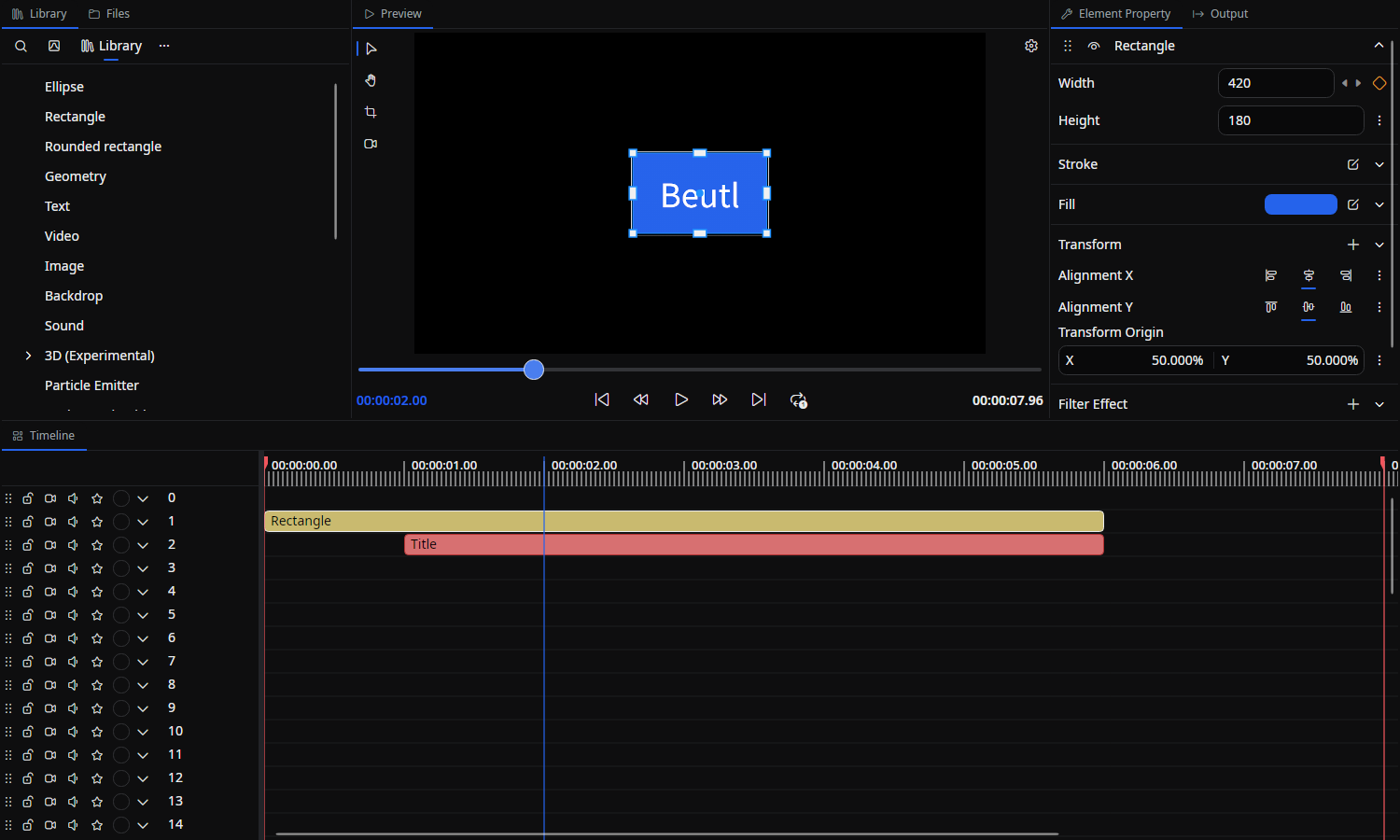
First, select the element you want to add on the timeline. The properties of the selected element will be displayed in the property editor on the right.
To add an effect directly to a drawing object,
click the + button in Filter Effects and select the effect you want to add.
Alternatively, you can drag and drop the effect you want to add from the library to Filter Effects.
Transform
Using transform, you can express movement, rotation, scaling, distortion, and more.
To set a transform directly on a drawing object,
click the + button in Transform and select the type of transform you want to add.
Editing transforms on the preview
While the preview's Move tool is active and playback is stopped, Beutl shows transform handles around the selected object so you can edit it directly on screen:
- Drag the center to change its position (adds/updates a
Translatetransform). - Drag a corner or edge handle to scale it (adds/updates a
Scaletransform). - Drag the rotation handle just outside a corner to rotate it (adds/updates a
Rotationtransform).
Dragging a handle adds the corresponding transform to the object if it does not have one yet. Transforms added inside a filter effect cannot be edited from the preview.
Editing Element Time
By dragging with the mouse on the timeline, you can edit the start time and duration of elements.
To make editing easier in Beutl, elements snap to the time of other layers during drag operations.
To temporarily disable this, drag while holding down the Alt key.
This feature cannot be permanently disabled in the settings screen.
Splitting Elements
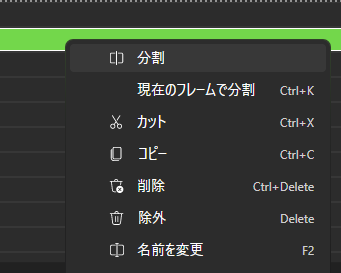
Right-click the element you want to split on the timeline and click the split button in the menu to split the element.
You can also use the Ctrl + K shortcut to split the selected element at the current frame.
Renaming Elements
In Beutl, you can change the color and name of elements, both of which can be changed from the right-click menu.
You can change the name with the F2 key or by double-clicking the element.
Recovering damaged elements
If an element's data is damaged or a required extension is missing, the parts that cannot be loaded appear as placeholder elements or objects. Unreadable elements are disabled, but you can continue editing the rest of the scene.
Reinstall the required extension or restore damaged files from a backup, then reopen the project. Original data for parts that could not be recovered is protected from being overwritten by auto-save.