Tool Tabs
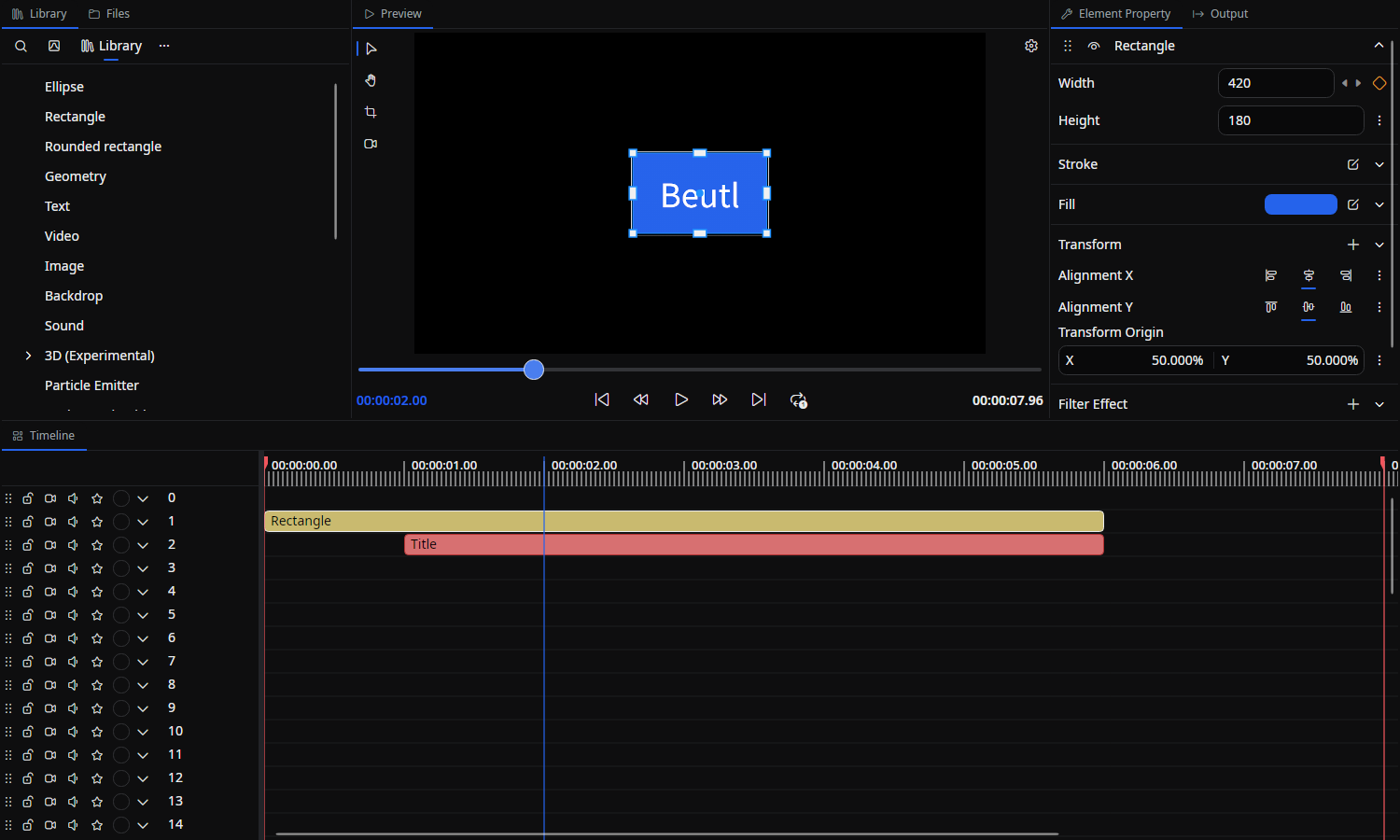
Tool tabs are dockable workspaces around the scene editor. Each tab serves a specific purpose, such as the Timeline, Library, or Properties. Drag the tabs to rearrange, stack, or tile them as needed.
Opening and resetting tabs
- Reopen a closed tab from the menu bar via View → Tools.
- Hover a dock's tab header and press the
+button to add a tab to that dock. Tabs that are already open and do not allow multiple instances are disabled in the menu. - Drag a tab's header to move it to a different dock area.
- Choose View → Reset dock layout to restore the tab arrangement to its initial state.
- Save the current arrangement under a name and re-apply it to any scene from the Dock layout tab.
The Scene settings and Graph Editor tabs do not appear in the View → Tools menu. See their respective pages for instructions on opening them.
- Hover the selected tab to show its close button. The extension icon appears to the left of the tab title.
Tab list
| Tab | Overview |
|---|---|
| Timeline | Arrange, split, and group elements on the time axis |
| Library | Drag drawables and effects into the scene |
| Files | Browse files in the project folder or any folder |
| Element Property | Edit the element itself (start time, duration, color, etc.) |
| Output | Manage encoding settings and output profiles |
| Scene settings | Configure scene size, start time, length, and layer count |
| Graph Editor | Edit time curves of animations |
| Node Graph | Place and connect nodes to edit a processing graph |
| Scopes | Waveform / Histogram / Vectorscope / False Color / Zebra displays for video |
| Color Grading | Perform color correction and color grading |
| Curves | Adjust tones with tone curves |
| Audio Visualizer | Waveform / Spectrum / Meter / Spectrogram / Phase Scope displays for audio |
| Path editor | Edit control points of path shapes |
| Preview Settings | Preview render quality, onion skin, and the render caches |
| History | Browse the edit history and jump back to any step |
| Terminal | Run a shell in the project folder without leaving the editor |
| Proxies | Generate and manage low-resolution proxy media for smooth preview |
| Dock layout | Save the tab arrangement under a name and re-apply it to any scene |
| Version Control | Record, compare, and restore project versions with Git |
| Browser | Browse websites and download media for the project |
| AI | Generate and edit images and videos, create subtitles, and manage jobs |
The source of truth for this document is src/Beutl/Services/StartupTasks/LoadPrimitiveExtensionTask.cs and the *TabExtension.cs files under src/Beutl.Editor.Components/ in the Beutl repository.